Release 109: Part 3 of the new learner experience

Release 109 is here.
In this briefing, we’ll take you through the latest updates to the aNewSpring platform. Small hint: this isn’t a skim-and-scroll kind of release. There’s a big highlight in here you don’t want to miss.
Ready? Let’s dive in.
The new learner experience
We’re proud to present part 3 of the new learner experience: a fresh and organised course overview!
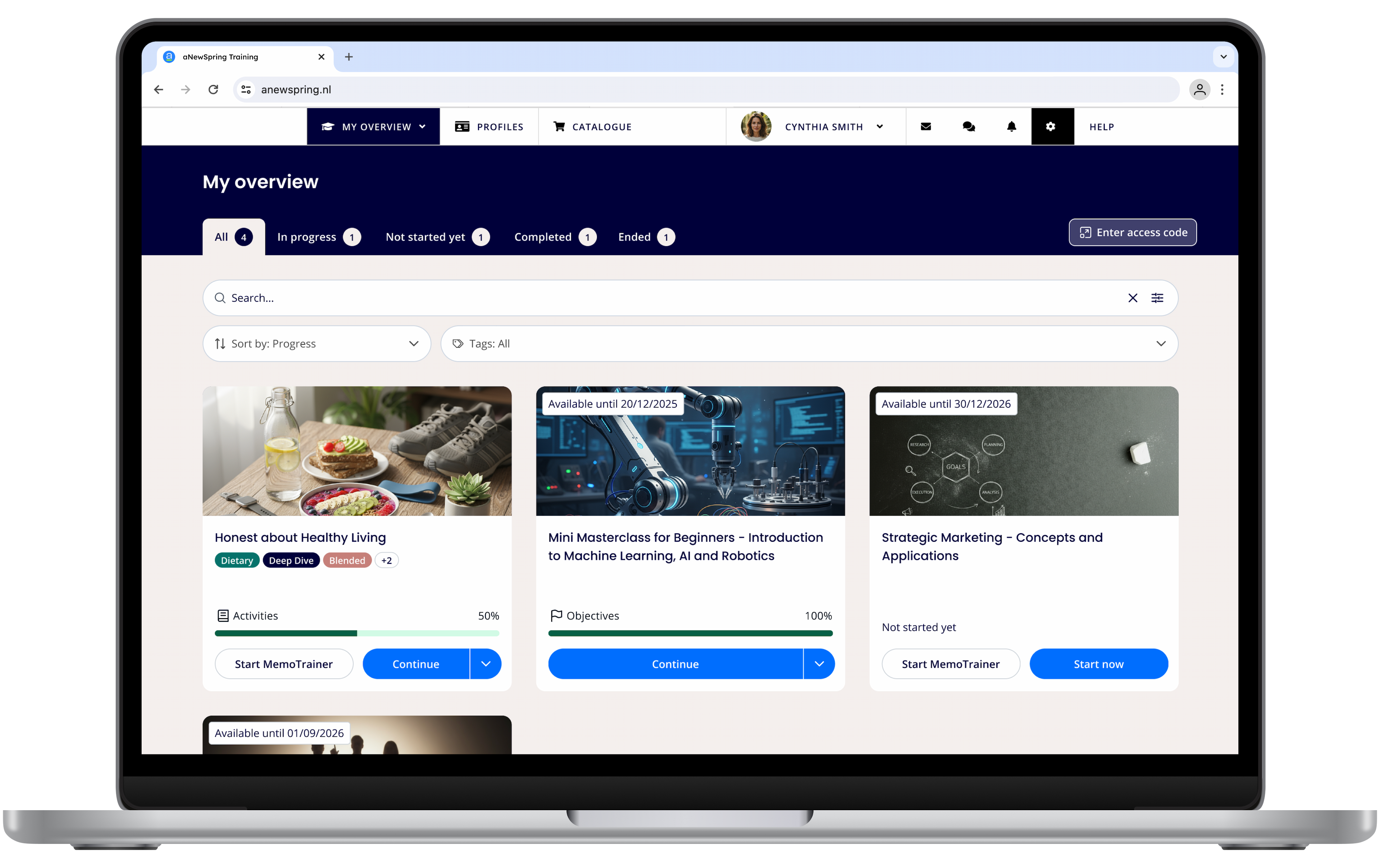
This overview is often the page that new learners see when they sign on to your learning environment for the first time. For learners who follow multiple courses, this page could be a bit overwhelming.
In the redesign, we kept the focus on an organised and understandable view for all learners. In the next pages we explain the biggest changes and the improved user experience this redesign offers.
Updated menu
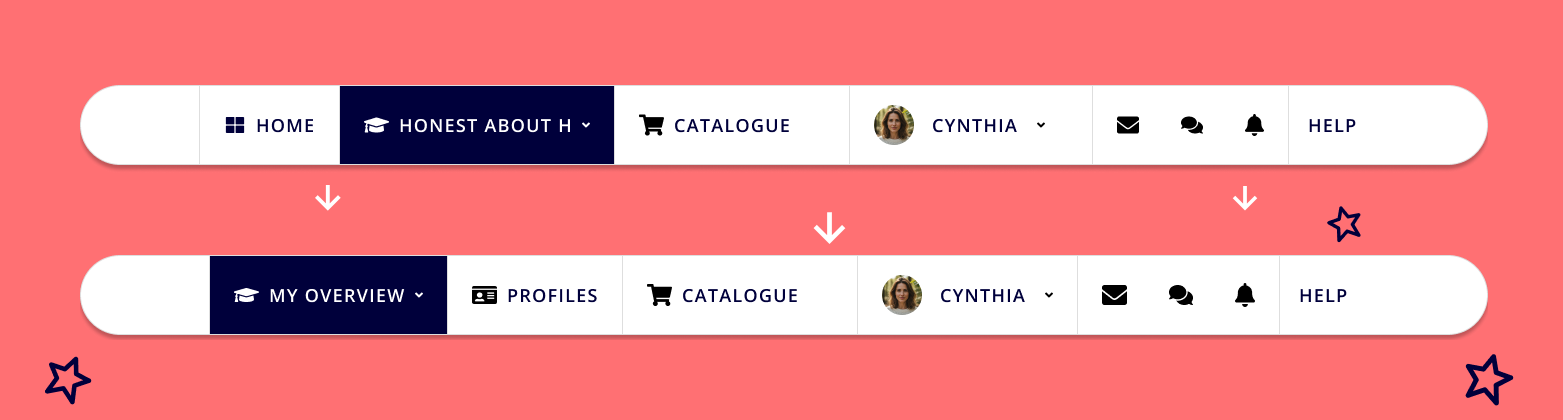
The old course overview was found in the menu under the name ‘home’. The new course overview is found under the name ‘my overview’. Learners can still click on the arrow beside ‘my overview’ to see their most recently worked on courses. Quickly navigate to these at any time, anywhere they are in the learning environment.
New to the main learner menu is ‘profiles’. This menu item will only be visible for learners that have been assigned to a profile and gives profiles the high level entrance that it deserves.
Tabs for an organised overview
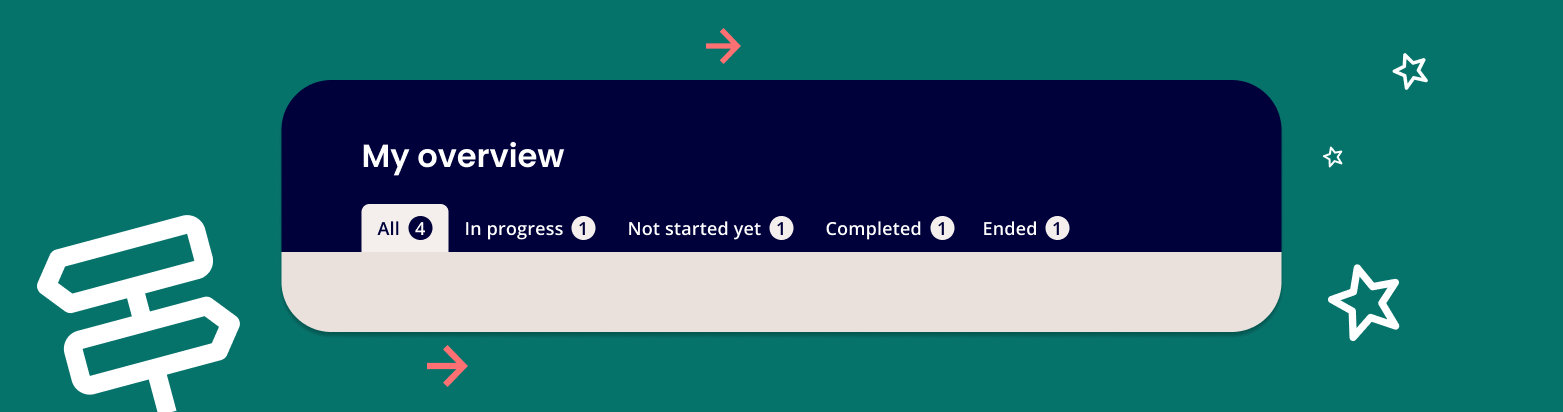
The biggest change is the different tabs on top of the page. Learners can choose to see all courses or only the courses that are in a specific status: in progress, not started yet, completed or ended.
While learning, learners can see the progress that they are making: one course is moved from ‘not started yet’ to ‘in progress’, while another is just moved to ‘completed’. A small but clear way to motivate learners to keep advancing.
The new course tile
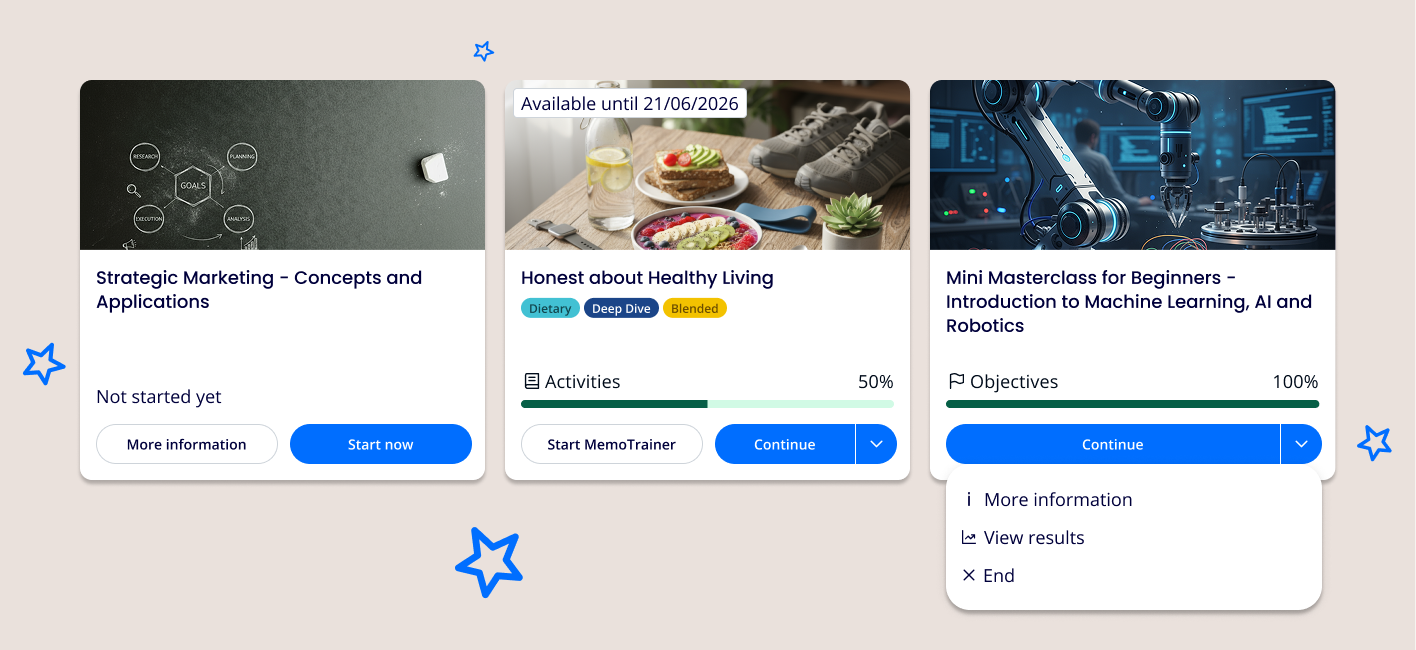
The new course tile is adaptive and adjusts the information shown on the tile to different use cases all the while keeping the tile as clean as possible to not give an overwhelming impression.
One progress bar: The tile no longer shows three progress bars. Instead, it displays only the most relevant one, depending on what matters most: activities, learning objectives, or retention.
More information: Looking for the description? Via the ‘more information’ button a modal opens with additional course information. Here the whole description can be read at all times!
‘Available until’: Do your courses need to be finished in a certain time frame and do you work with an expiry date to realise this? The new ‘available until’ tag on the image informs learners about the window they have, so they can finish the course in time.
Search, sort and filter!
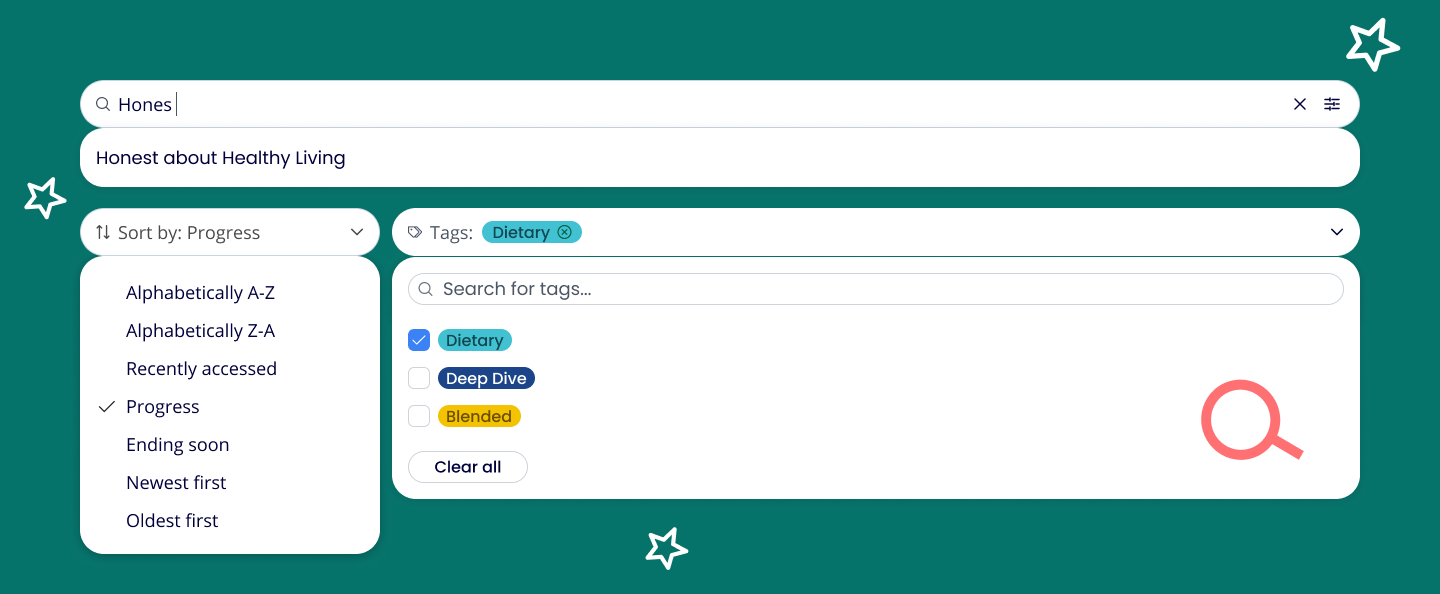
Learners have three interactions to more easily find or organise the courses on their overview: searching, sorting and filtering based on tags.
Search: On the course overview, learners can search on the titles of courses to quickly get access to the course they need. If they are looking for content within a specific course, they can use ‘detailed search’. This will look for the search term within the course so learners can immediately navigate to the block or activity that has the piece of content they were looking for.
Sorting: Learners are now able to sort their overview themselves. This provides them a personalised way to organise their courses to what is convenient for their situation.
Filtering on tags: They can filter the courses they see based on tags just like before. The tags are now displayed ‘in full colour’ same as they are for designers and other staff side users. This makes them more recognisable as tags and helps learners use tags to find a specific group of courses.
AI functionalities
We use AI where it truly adds value: to simplify your work, save time and let you focus on what matters most: creating great learning journeys.
Learning journey advisor
This functionality has been available since July 8, 2025.
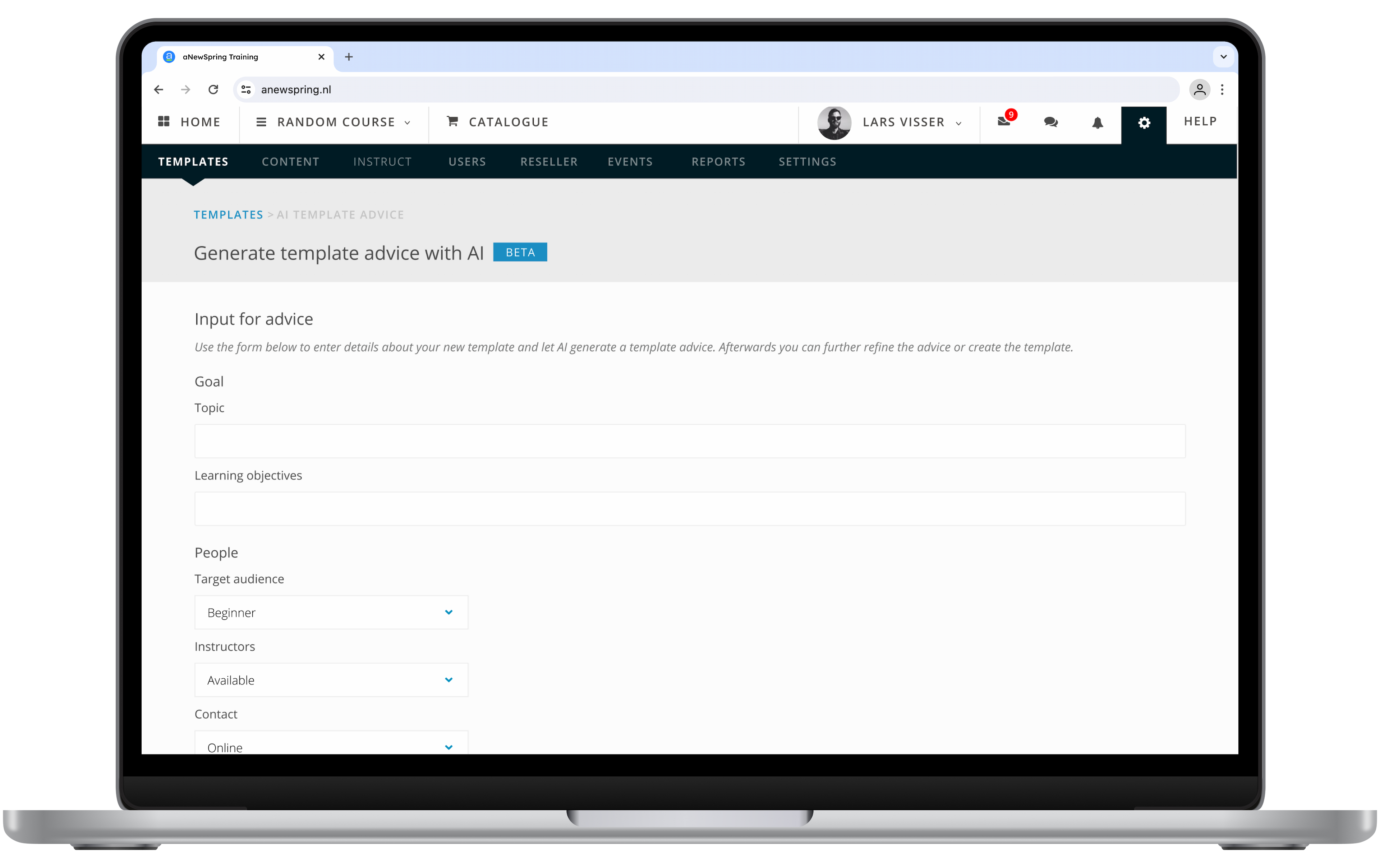
The Learning Journey Advisor is our AI-powered assistant that helps you get from zero to a first template in no time. Whether you're starting from scratch or just need a nudge in the right direction, this smart tool will help you get started creating impactful learning journeys, step by step.
Haven’t you tried the Learning Journey Advisor yet? Read this article or watch this episode of our featured feature series to dive into the details.
Assessment Advice
This functionality has been available since September 16, 2025.
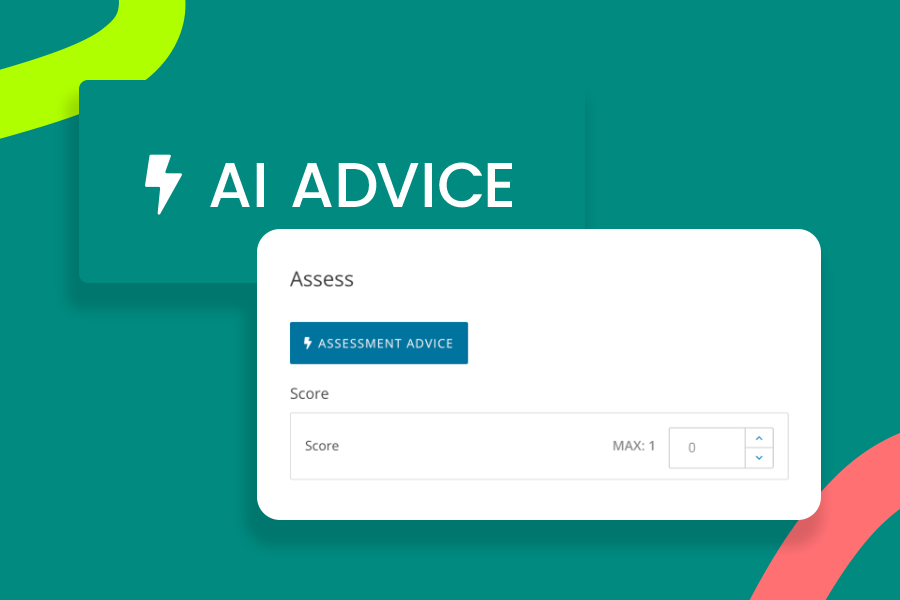
For instructors and trainers, assessing essay questions can become a repetitive and labour-intensive task. At the same time, these types of questions are extremely valuable. They show what learners have truly understood and allow you to give targeted feedback to support their progress.
That’s where the AI Assessment Advice tool comes in. A feature in the aNewSpring platform that helps you assess essay questions faster, more easily, and with more consistency. You remain in control, the AI simply supports your process by offering: a suggested score and feedback based on the entered model answer.
This feature needs to be activated for the learning environment by the tenant.
Other valuable platform updates
Alongside the major releases, we’ve also rolled out a few smaller updates. They might not be flashy, but they’re genuinely useful for your day-to-day work.
‘Last updated’ dates in the content library
These functionalities have been available since August 21 and October 16, 2025.
In the content library, you can now see the date that a piece of content or a file was last updated or uploaded.
Content: Is it time for you to review your content? This can be a daunting task, but we’ve made it easier for you. It's now possible to sort your content on ‘last updated’ date. This way you can check your content one-by-one without losing track of which content you did or didn’t update yet. Click on the ‘show all as list’ button on top of the table and then on the triangle in the ‘updated’ column to be able to sort your questions and content parts.
Files: For files we have a ‘last uploaded’ date, this way you know exactly which files have already been replaced with the latest version and which one still might need an update.
Good to know: all updates have been registered since August 21, 2025; that’s when we started tracking this data.
Events: re-enrolling to another event in the activity
This functionality has been available since January 9, 2026.
Do your learners always show up for the first event they subscribed to? Most likely the answer to that question is no…
Admins have always been able to offer multiple events within one event activity. But as soon as the learner was marked ‘absent’, they completed the activity and they weren’t able to subscribe to any of the other available events any more.
This behaviour is based on the ideology that a ‘negative’ grade (absent of a failing score) can also be a conclusion to complete the activity with. However the opposite can also be true. Maybe your event is mandatory and the learner has to complete the activity with a passing grade or by attending?
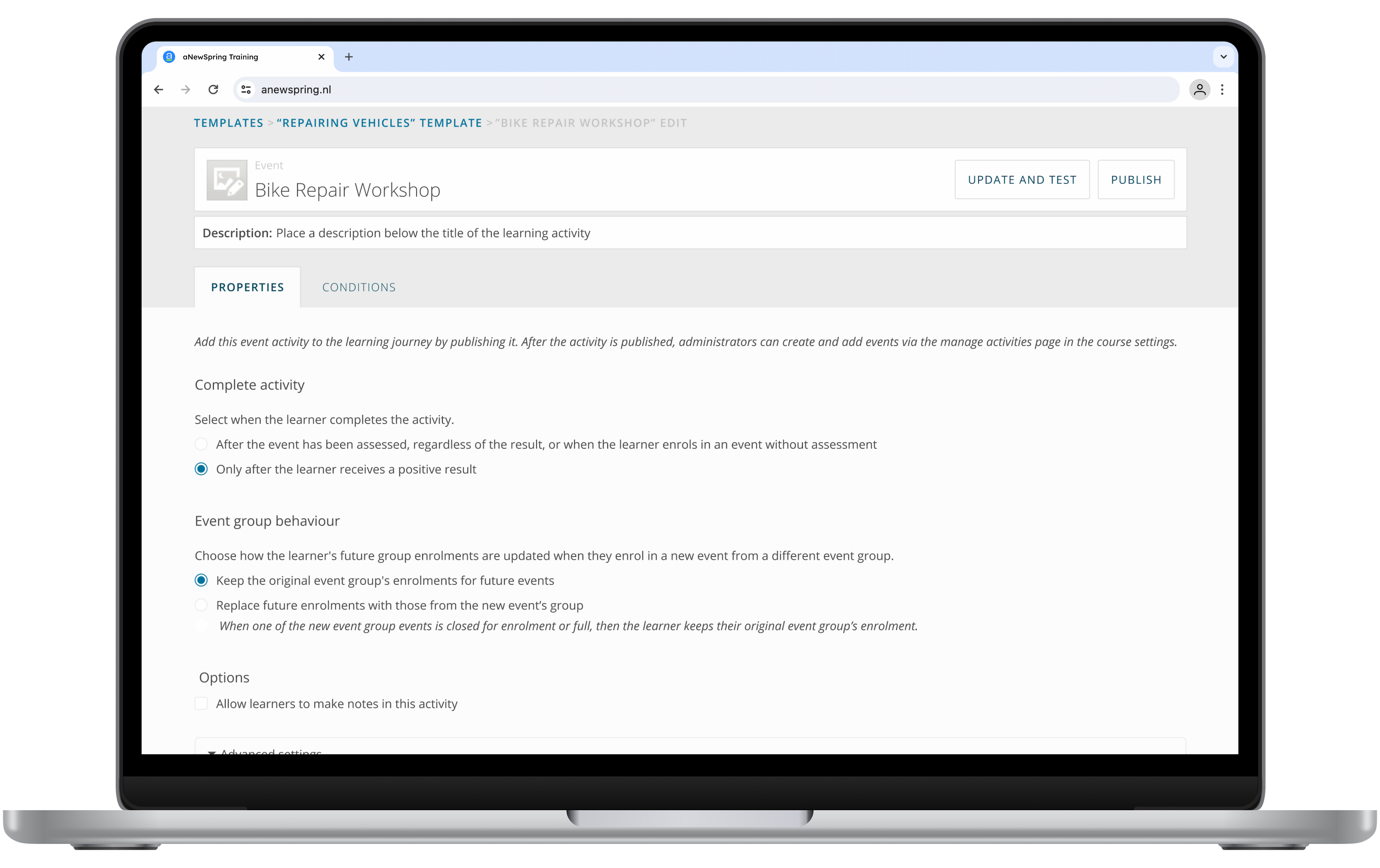
With the new ‘complete activity’ setting for Event activities you can make this happen! By saying that the learner only completes the activity after receiving a positive assessment, the learner is able to enroll into another event after receiving a ‘negative assessment’. Giving them a second (or even a third or fourth) chance to be present and to learn.
A new place for the ‘Course Completing Activity’ setting
While the option isn’t new to our platform, it was originally used as a way to pinpoint a moment to send a signal of “this learner completed this course!” to external systems.
Now this moment will also have meaning within our interface. As soon as the Course Completing Activity is completed by the learner, their course will move from the tab ‘in progress’ to the tab ‘completed’.
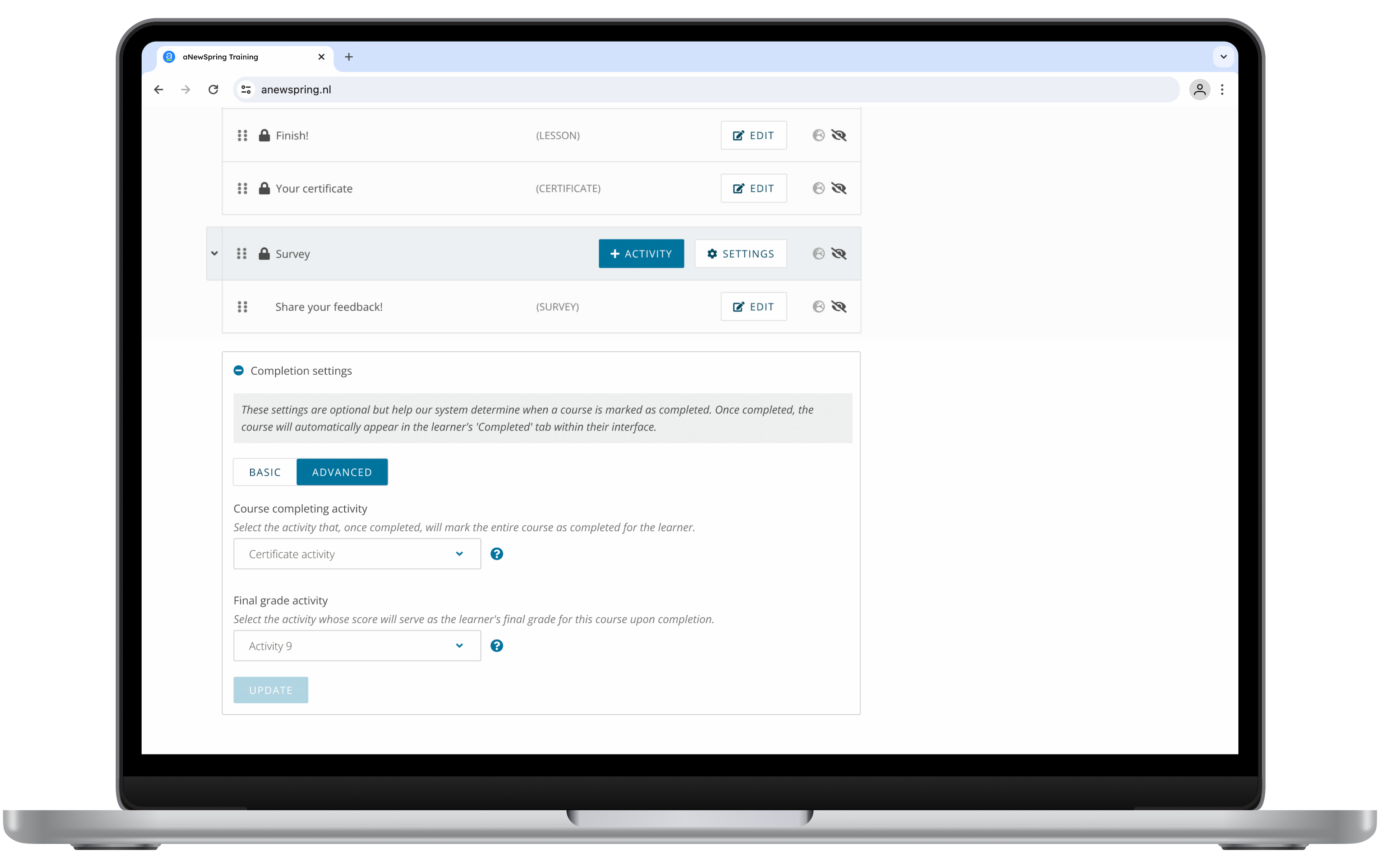
To make it easier for you to fill in this setting, it has been moved to a new place: underneath all blocks and activities. So when you’ve completed your course structure, you’ll have a reminder to choose an activity and it is set up within a couple of seconds!
Automatically navigate back to the learning journey after finishing a block
This functionality has been available since June 27, 2025
Within a template a designer can choose how the learner will move through the learning journey:
Always go back to the learning journey overview after completing an activity.
Automatically go to the next activity.
We’ve added a new option to the list:
Automatically go to the next activity within the block. After the last activity of the block, return to the learning journey overview.
This setting is ideal for learning journeys that handle different topics per block and where starting another should really be a conscious choice the learner makes. Or in the case that you ‘just’ want to offer a moment of recalibration for the learner before they dive into the next block.
Direct link to the instructor feedback on External and Webinar activities
This functionality has been available since October 13, 2025.
Learners who look at their result overview can click on an activity name to quickly navigate to the player. Here they can review the activity or the assessment that they have been given.
The External and Webinar activities have long been an exception to this rule, but no longer! For these activities the learner can now too, quickly navigate to the player for a good review.
This has been developed for the redesigned result page and is available for the learners of customers who have activated the page for their learners.
Parameters 'course title' and 'course name' available in the ‘Certificate about to expire’ email
This functionality has been available since May 15, 2025.
Learners can receive an email when their certificate is about to expire. The original email doesn't contain the course title or name and when editing the content it also isn't possible to add these to the mail.
When the learner doesn’t have access to the course anymore, this is preferred.
However, when you are working with recertification, then the course remains accessible. A quick link to the course in the email will allow learners to navigate to the course and to start working on re-obtaining their certificate, right away!
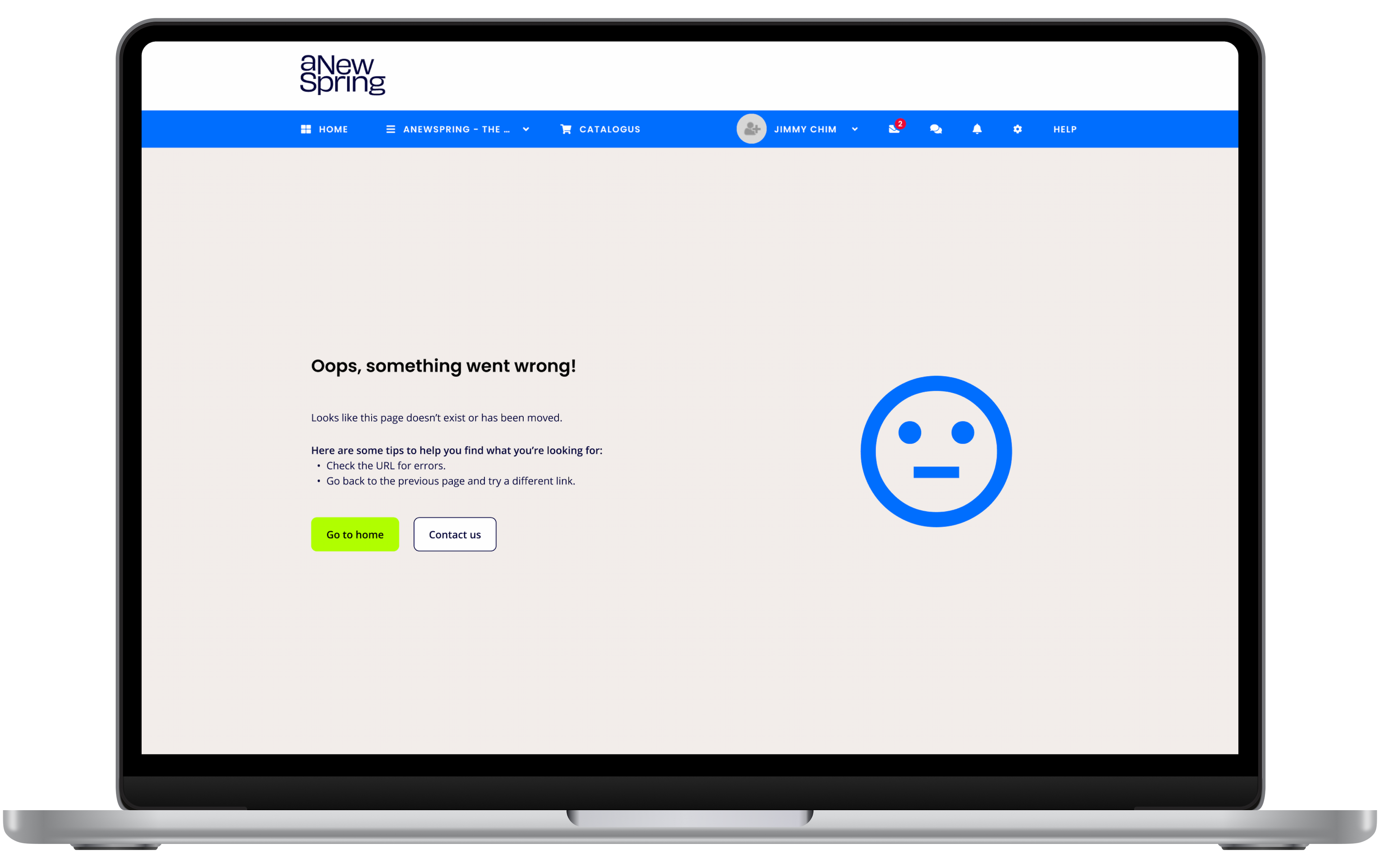
Improving errors pages and messages
This has been an ongoing project for 2025 and will continue in 2026.
It is never fun, but when working with websites and software it is unescapable: errors. Something ‘just’ goes wrong and a learner ends on an error page, frustrating!
We’ve redesigned our error page to soften the blow and to best help the learner in the direction of a solution.
Dive into the details
In this article, we explained the biggest changes to our platform. If you want to deep dive further into all changes for the new learner experience of this release, take a look at the knowledge base:
If you have any questions regarding the release, do not hesitate to contact our Support Heroes!

-1731660517.png&w=3840&q=100)